

CI(Continuous Integration)是Devops的軟體開發流程,主要針對程式碼變更後的自動建置和測試之後,定期將變更合併置主要Repository,CI的關鍵目標是能更快發現和解決問題、改善軟體品質還有減少驗證和釋出軟體更新所需的時間。
此篇文章將教你如何建立Gitlab CI流程
環境說明:

|
項次 |
部署位置 |
地端/雲端 |
部署方式 |
說明 |
|
1 |
Windows
Server(iis) |
地 |
手動 |
本地VM,測試環境或者待管Server時會使用 |
|
2 |
Azure |
雲 |
手動 |
透過VS Code或FTP去部署 |
|
3 |
Azure |
雲 |
自動 |
透過CI/CD方式去部署 |
|
|
|
|
|
|
1.先設定iis站台的URL Rewrite (SPA網站都可參考此設定)
//Web.config

更多資訊可參考保哥此篇文章說明
2.使用Terminal執行語法npm run build,以產生實體檔(檔案預設放在dist
3.手動搬移檔案至Server
- 安裝Azure App Service Extension
- 使用語法npm run build產生實體檔(檔案預設放在dist資料夾)
- 使用滑鼠右鍵對選dist資料夾中的Deploy to Web App…
- 點選Sign in Azure
- 選擇登入Azure帳號
- 登入成功後選擇建立Azure App Service段落所建立App Service
- 點選Deploy以部署到 App Service
- 佈署成功可點選右下角的Browse WebSite查看(須過一段時間才能正常顯示)
- 使用語法npm run build產生實體檔(檔案預設放在dist資料夾)
- 從Azure的App Service頁面點選左側的Deployment center。
- 點選FTP credentials就可以看到FTP的連線設定
- 使用FTP工具(例.Filezilla)連線並將欲部署的檔案更新上去。
因CI/CD會被SourceControl的不同影響,待有實作時再回補說明

依據以下步驟建立React開發環境,本篇文章使用的是vite來建立專案,而不是之前介紹的CRA。
先新建一個專案資料夾,並透過VS Code開啟

用Ctrl+`來開啟Terminal,並輸入以下Command
npm create vite@latest
再根據專案選項依序點選


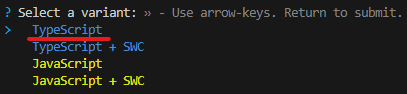

接著用OpenFolder的方式開啟剛剛建立的專案資料夾

npm install
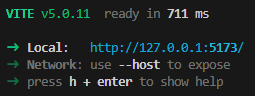
安裝完成後,再輸入以下指令就可以偵錯網站
npm run dev

這篇主要說明如何開發自定義的Component,讓多個頁面都可同時使用,範例程式碼可參考這裡。
最常見的自定義元件大概就是輸入框、讀取動畫或視窗...這類的。因為之前有實作過登入頁,那就以密碼輸入框來教大家如何實作。
因示範專案使用的是MUI,建議各位在開發任何元件前都可確認有沒有官方範例,有的話就可以省下大量的時間去實作。
而這功能確實有找到官方範例,那就可以直接抓程式碼下來使用!
首先先在src/components/text裡新增Password.tsx,並將官方範例貼上去。
Password.tsx
----------------------------------------------------------------------------------------------------------------
----------------------------------------------------------------------------------------------------------------
主要定義幾個屬性
ID:元件ID。Name:元件Name,有包Form的可透過FormData.get({name})抓到值。Label:元件Label。ErrorMsg:顯示錯誤訊息。
再將Login的原先密碼欄位改成使用<Password/>
Login.tsx
----------------------------------------------------------------------------------------------------------------
import Password from '../components/text/Password';
省略...
省略...
----------------------------------------------------------------------------------------------------------------
這樣就完成囉,未來如果有需要使用密碼欄位就可以同Login頁載入使用,下面Demo一下效果
 |
| 初始為不顯示密碼 |
 |
| 點選眼睛,就可以看到剛輸入的密碼。 |
看起來功能正常,這樣大家就可以開始來製作屬於自己的元件囉!
這篇功能感覺比前幾篇簡單許多,其實是各位在之前的教學都已經有作過了,讓大家猜猜看是什麼?
公布答案!其實各個頁面也是Component,只是載入的地方在APP.tsx內且透過React-Router去切換掉Content,所以如果有多個地方要顯示同樣的頁面,也可以使用此篇教的方法囉!

此篇主要說明Redux,範例程式碼可參考這裡。
基本上Redux的功用就是管理狀態以及畫面與資料分開管理,與之前加上登入機制所使用的Context功能大同小異,優於Context的地方是在有多個state要管理時會優於React原生的Context。
p.s. Redux和Context API可混用,需頻繁操作的state可以用Redux,反之則用Context。
主要核心元件為redux和react-redux,redux是函式庫本體,react-redux則是React綁定使用套件。
Redux組成主要有三個元素
定義操作state方法,會傳入reducer。
保管State並針對傳入的action去對state做動作。

接下來我們就直接用計數器範例來說明各元素的功能以及作用
開始前先用npm安裝套件語法如下
//安裝redux和react-redux
npm install --save redux react-redux
//安裝react-redux的Typescript套件
npm install --save --dev @types/react-redux
程式碼部分我們先建立reducer部分,新增reducers資料夾和counter檔案(src/reducers/counter.ts)
counter.ts裡面有Action類別定義、Actions和reducer本體,程式碼如下
counter.ts
-------------------------------------------------------------------------------------------------------------------
-------------------------------------------------------------------------------------------------------------------
簡單說明,定義以及匯出Action主要是集中管理狀態的處理,對後續維護以及測試有許多幫助。
而reducer本體則是依照傳入的action去操作state並回傳最新的State,使之更新view。
再來建立集中管理reducer的store,新增stores資料夾和configureStore檔案(src/stores/configureStore.ts)
configureStore.ts
-------------------------------------------------------------------------------------------------------------------
-------------------------------------------------------------------------------------------------------------------
如果只有一個reducer的可以直接createStore,但預想未來專案可能會有多個reducer,所以中間多一個combineReducers,有新增時在填入。
再來要修改index.tsx讓所有Component可以使用,需要使用react-redux的Provider來包覆住APP。
//index.tsx(紅字部分為新增)
-------------------------------------------------------------------------------------------------------------------
-------------------------------------------------------------------------------------------------------------------
透過Provider的store讓全系統都可使用Redux。
前面這樣定義就完成了,開始撰寫計數器,新增counter.tsx頁面
//counter.tsx
-------------------------------------------------------------------------------------------------------------------
-------------------------------------------------------------------------------------------------------------------
說明一下程式碼,
操作部分使用useDispatch來取得dispatch,在按鈕時在使用dispatch傳入定義好的action操作state。
而畫面更新部分則是使用useSelector取代useState,如果state更新則有使用到useSelector的Component也會更新。
實際就可以來Run看看畫面,看起來是可以正常加減。

p.s.因為是全域的state,所以要注意如果切頁再回來值不會變回0。
這樣就完成了資料與畫面分離的部分,對於未來的維護上應該也就簡單許多,建議大家還是要使用Redux。
一樣在結尾也說明一下其實還有更多的應用沒有一起說明,例如操作資料庫或是用redux-logger來記錄每次操作state...等等,後續如果有用到時再分享給大家,謝謝!
ASP.Net的GirdView在每次分頁處理時都會在重新抓取所有資料在進行分頁,遇到大量資料或是設計不良的情況下,在切換時頁面會卡住,造成使用者體驗不佳。 可以透過GirdView內建的參數以及SQL OFFSET語法來替代原先的分頁處理,以下為步驟說明 1.asp...

