2024年8月21日 星期三

[React]開發常見問題


此篇文章記錄一下一些初學者開發React時比較常見的一些問題。

(2024/08/22 更新)


2024年3月22日 星期五

[jest]Software Testing


此篇要教各位如何去撰寫前端的測試流程,測試在CI/CD流程內是不可或缺的一環

例如下方的pipeline圖


開始前先來了解一下主要會使用到的元件
  • jest-environment-jsdom一般也指測試的執行環境(environment),目的是模擬瀏覽器的行為、API,讓開發者能在 Node.js 的環境下模擬瀏覽器的操作
  • jest:是一個用來執行 JavaScript 測試的框架(JavaScript Test Framework),又稱 test runner,它讓開發者能夠執行測試、撰寫斷言,提供的 API 像是 expect、describe、test、toBe、toEqual 等等。其他這類的 JS testing frameworks 如 Vitest、mochajs、Jasmine 等等
  • @testing-library/jest-dom:原本 Jest 就有提供許多不同的 matchers(例如,toBe()、toEqual()等等),@testing-library/jest-dom則是擴充了更多可以在 Jest 中使用的 matchers,讓開發者可以使用toBeInTheDocument()` 等這類和 DOM 有關的 matchers。
  • @testing-library/react:基於 @testing-library/dom,它讓開發者可以把 React 元件 render 到 DOM 上,像是 render、screen、rerender、unmount 等等。不需要搭配 Jest 才能使用。其他這類的工具如 Enzyme。
  • @testing-library/user-event:模擬使用者的操作來測試使用者與 UI 的互動。相較於 @testing-library/dom 中的 fireEvent 更能模擬使用者的行為。
  • @babel/plugin-transform-modules-commonjs:ESM轉譯成CJS的套件,如果有使用到第三方套件則必須載入。

了解套件後就可以開始設定專案

先安裝套件,可透過以下語法安裝

2024年2月21日 星期三

[Gitlab]CI-流程建置


CI(Continuous Integration)是Devops的軟體開發流程,主要針對程式碼變更後的自動建置和測試之後,定期將變更合併置主要Repository,CI的關鍵目標是能更快發現和解決問題、改善軟體品質還有減少驗證和釋出軟體更新所需的時間。


此篇文章將教你如何建立Gitlab CI流程

環境說明:

  • Gitlab (self-managed)
  • Gitlab Runner
  • Docker (windows)


首先在Docker上安裝Gitlab-Runner,輸入以下指令安裝Docker

2024年2月16日 星期五

[React]環境部署


透過以下的簡易步驟,來部署React網站


以下依照不同的Server列出說明

項次

部署位置

地端/雲端

部署方式

說明

1

Windows Server(iis)

手動

本地VM,測試環境或者待管Server時會使用

2

Azure

手動

透過VS CodeFTP去部署

3

Azure

自動

透過CI/CD方式去部署


  • Window Server(iis)

1.先設定iis站台的URL Rewrite (SPA網站都可參考此設定)

//Web.config

更多資訊可參考保哥此篇文章說明

2.使用Terminal執行語法npm run build,以產生實體檔(檔案預設放在dist

3.手動搬移檔案至Server

  •  Azure (手動上傳)

    手動上傳還可區分成VS Code部署以及FTP部署兩種

    • VS Code部署

  1. 安裝Azure App Service Extension
  2. 使用語法npm run build產生實體檔(檔案預設放在dist資料夾)
  3. 使用滑鼠右鍵對選dist資料夾中的Deploy to Web App…
  4.  點選Sign in Azure
  5. 選擇登入Azure帳號
  6. 登入成功後選擇建立Azure App Service段落所建立App Service
  7. 點選Deploy以部署到 App Service
  8. 佈署成功可點選右下角的Browse WebSite查看(須過一段時間才能正常顯示)

    • FTP部署

  1. 使用語法npm run build產生實體檔(檔案預設放在dist資料夾)
  2. AzureApp Service頁面點選左側的Deployment center
  3.  點選FTP credentials就可以看到FTP的連線設定
  4. 使用FTP工具(.Filezilla)連線並將欲部署的檔案更新上去。

  •  Azure (CI/CD)
因CI/CD會被SourceControl的不同影響,待有實作時再回補說明


[React] 開發環境建立


依據以下步驟建立React開發環境,本篇文章使用的是vite來建立專案,而不是之前介紹的CRA。


先新建一個專案資料夾,並透過VS Code開啟


用Ctrl+`來開啟Terminal,並輸入以下Command

npm create vite@latest

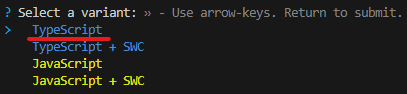
再根據專案選項依序點選


接著用OpenFolder的方式開啟剛剛建立的專案資料夾


用Ctrl+`開啟Terminal,輸入以下指令安裝package.json內的相依套件

npm install

 安裝完成後,再輸入以下指令就可以偵錯網站

npm run dev
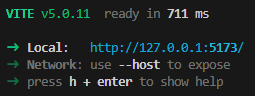

點擊網址,就可以看到網頁囉


2023年1月30日 星期一

[React]實作自定義的Component(密碼輸入框)


這篇主要說明如何開發自定義的Component,讓多個頁面都可同時使用,範例程式碼可參考這裡


最常見的自定義元件大概就是輸入框、讀取動畫或視窗...這類的。因為之前有實作過登入頁,那就以密碼輸入框來教大家如何實作。

因示範專案使用的是MUI,建議各位在開發任何元件前都可確認有沒有官方範例,有的話就可以省下大量的時間去實作。

而這功能確實有找到官方範例,那就可以直接抓程式碼下來使用!


首先先在src/components/text裡新增Password.tsx,並將官方範例貼上去。

Password.tsx

----------------------------------------------------------------------------------------------------------------

import { Visibility, VisibilityOff } from "@mui/icons-material";
import { IconButton, InputAdornment, TextField } from "@mui/material";
import { useState } from "react";
export default function Password(props: passwordProps) {
    //顯示密碼Flag
    const [showPassword, setShowPassword] = useState(false);
    //眼睛點選事件
    const handleClickShowPassword = () => setShowPassword((show) => !show);
    //取消預設點選事件
    const handleMouseDownPassword = (event: React.MouseEvent<HTMLButtonElement>) => {
        event.preventDefault();
    };
    return (
        <TextField
            error={props.ErrorMsg !== ''}
            margin="normal"
            required
            fullWidth
            name={props.Name}//"password"
            label={props.Label}//"Password"
            id={props.ID}//"password"
            autoComplete="current-password"
            helperText={props.ErrorMsg !== '' ? props.ErrorMsg : ""}
            InputProps={{
                type: showPassword ? 'text' : 'password',
                endAdornment:
                    <InputAdornment position="end" >
                        <IconButton
                            aria-label="toggle password visibility"
                            onClick={handleClickShowPassword}
                            onMouseDown={handleMouseDownPassword}
                            edge="end"
                        >
                            {showPassword ? <VisibilityOff /> : <Visibility />}
                        </IconButton>
                    </InputAdornment>
            }
            }
        />
    );
}
interface passwordProps {
    ID:string
    Name: string
    Label:string
    ErrorMsg?: string;
}

----------------------------------------------------------------------------------------------------------------


主要定義幾個屬性

ID:元件ID。
Name:元件Name,有包Form的可透過FormData.get({name})抓到值。
Label:元件Label。
ErrorMsg:顯示錯誤訊息。 


再將Login的原先密碼欄位改成使用<Password/>

Login.tsx

----------------------------------------------------------------------------------------------------------------

import Password from '../components/text/Password';

省略...

{/*原程式碼*/}
{/*<TextField*/}
{/*    error={LoginMsg !== ''}*/}
{/*    margin="normal"*/}
{/*    required*/}
{/*    fullWidth*/}
{/*    name="password"*/}
{/*    label={t('Login.Password')}*/}
{/*    type="password"*/}
{/*    id="password"*/}
{/*    autoComplete="current-password"*/}
{/*    helperText={LoginMsg !== '' ? LoginMsg:""}*/}
{/*/>*/}
 <Password ID="password" Name="password" Label={t('Login.Password')} ErrorMsg={LoginMsg} />

省略...

----------------------------------------------------------------------------------------------------------------


這樣就完成囉,未來如果有需要使用密碼欄位就可以同Login頁載入使用,下面Demo一下效果

初始為不顯示密碼

點選眼睛,就可以看到剛輸入的密碼。


看起來功能正常,這樣大家就可以開始來製作屬於自己的元件囉!


這篇功能感覺比前幾篇簡單許多,其實是各位在之前的教學都已經有作過了,讓大家猜猜看是什麼?


公布答案!其實各個頁面也是Component,只是載入的地方在APP.tsx內且透過React-Router去切換掉Content,所以如果有多個地方要顯示同樣的頁面,也可以使用此篇教的方法囉!



2023年1月4日 星期三

[React]Redux說明&導入


此篇主要說明Redux,範例程式碼可參考這裡


基本上Redux的功用就是管理狀態以及畫面與資料分開管理,與之前加上登入機制所使用的Context功能大同小異,優於Context的地方是在有多個state要管理時會優於React原生的Context。

p.s. Redux和Context API可混用,需頻繁操作的state可以用Redux,反之則用Context。

主要核心元件為redux和react-redux,redux是函式庫本體,react-redux則是React綁定使用套件。

Redux組成主要有三個元素

1.action

定義操作state方法,會傳入reducer。

2.reducer

保管State並針對傳入的action去對state做動作。

3.store

管理並整合reducer。

以下為Redux 的流程示意圖


接下來我們就直接用計數器範例來說明各元素的功能以及作用


開始前先用npm安裝套件語法如下

//安裝redux和react-redux

npm install --save redux react-redux


//安裝react-redux的Typescript套件

npm install --save --dev @types/react-redux


程式碼部分我們先建立reducer部分,新增reducers資料夾和counter檔案(src/reducers/counter.ts)

counter.ts裡面有Action類別定義、Actions和reducer本體,程式碼如下


counter.ts

-------------------------------------------------------------------------------------------------------------------

//初始state
const initState = {
    count: 0
};

// #region 定義Action類別
//增加
const INCREMENT = 'INCREMENT';
//減少
const DECREMENT = 'DECREMENT';
// #endregion 

// #region 匯出Action
//增加
export const countPlus = { type: INCREMENT }
//減少
export const countMinus = { type: DECREMENT }
// #endregion

// #region reducer本體
const counterReducer = (state = initState, action: any) => {
    //依照action的類型作判斷
    switch (action.type) {
        case INCREMENT:
            return { count: state.count + 1 };
        case DECREMENT:
            return { count: state.count - 1 };
        default:
            return state;
    }
};
// #endergion 

export default counterReducer;

-------------------------------------------------------------------------------------------------------------------

簡單說明,定義以及匯出Action主要是集中管理狀態的處理,對後續維護以及測試有許多幫助。

而reducer本體則是依照傳入的action去操作state並回傳最新的State,使之更新view。


再來建立集中管理reducer的store,新增stores資料夾和configureStore檔案(src/stores/configureStore.ts)


configureStore.ts

-------------------------------------------------------------------------------------------------------------------

import { createStore, combineReducers } from 'redux';
import counterReducer from '../reducers/counter';
const rootReducer = combineReducers({
    counterReducer,
});
const store = createStore(rootReducer);
export default store;

-------------------------------------------------------------------------------------------------------------------

如果只有一個reducer的可以直接createStore,但預想未來專案可能會有多個reducer,所以中間多一個combineReducers,有新增時在填入。


再來要修改index.tsx讓所有Component可以使用,需要使用react-redux的Provider來包覆住APP。


//index.tsx(紅字部分為新增)

-------------------------------------------------------------------------------------------------------------------

import React from 'react';
import ReactDOM from 'react-dom/client';
import './index.css';
import App from './App';
import reportWebVitals from './reportWebVitals';
import './i18n';
import { Provider } from 'react-redux';
import store from './stores/configureStore';

const root = ReactDOM.createRoot(
  document.getElementById('root') as HTMLElement
);
root.render(
    <React.StrictMode>
        <Provider store={store}>
            <App />
        </Provider>
  </React.StrictMode>
);
// If you want to start measuring performance in your app, pass a function
// to log results (for example: reportWebVitals(console.log))
// or send to an analytics endpoint. Learn more: https://bit.ly/CRA-vitals
reportWebVitals(console.log);

-------------------------------------------------------------------------------------------------------------------

透過Provider的store讓全系統都可使用Redux。


前面這樣定義就完成了,開始撰寫計數器,新增counter.tsx頁面

//counter.tsx

-------------------------------------------------------------------------------------------------------------------

import * as React from 'react';
import { useSelector,useDispatch } from 'react-redux';
import { countMinus, countPlus } from '../reducers/counter';
export function Counter() {
    
    //透過useDispatch來使用action
    const dispatch = useDispatch();
    //透過useSelector去取得State
    const count: number = useSelector(state => (state as any).counterReducer.count);
    return (
        <React.Fragment>
            <h1>Counter</h1>
            <h3> Redux</h3>
            <p aria-live="polite">Current count: <strong>{count}</strong></p>
            <button style={{ margin: '5px' }}
                type="button"
                className="btn btn-primary btn-lg"
                onClick={() => { dispatch(countPlus); }}>
                Increment
            </button>
            <button style={{ margin: '5px' }}
                type="button"
                className="btn btn-primary btn-lg"
                onClick={() => { dispatch(countMinus); }}>
                Decrement
            </button>
        </React.Fragment>
    );
}

-------------------------------------------------------------------------------------------------------------------

說明一下程式碼,

操作部分使用useDispatch來取得dispatch,在按鈕時在使用dispatch傳入定義好的action操作state。

而畫面更新部分則是使用useSelector取代useState,如果state更新則有使用到useSelector的Component也會更新。


實際就可以來Run看看畫面,看起來是可以正常加減。


p.s.因為是全域的state,所以要注意如果切頁再回來值不會變回0。


這樣就完成了資料與畫面分離的部分,對於未來的維護上應該也就簡單許多,建議大家還是要使用Redux。


一樣在結尾也說明一下其實還有更多的應用沒有一起說明,例如操作資料庫或是用redux-logger來記錄每次操作state...等等,後續如果有用到時再分享給大家,謝謝!


[ASP.Net]GridView自訂分頁處理

  ASP.Net的GirdView在每次分頁處理時都會在重新抓取所有資料在進行分頁,遇到大量資料或是設計不良的情況下,在切換時頁面會卡住,造成使用者體驗不佳。 可以透過GirdView內建的參數以及SQL OFFSET語法來替代原先的分頁處理,以下為步驟說明 1.asp...